
GIF Keyboard by Tenor
Tenor GoogleVideo Players & Editors
3.711.76K Reviews
- Version
- 2.1.78
- Installs
- 50.00M
- Age Rating
- Teen
Screenshots
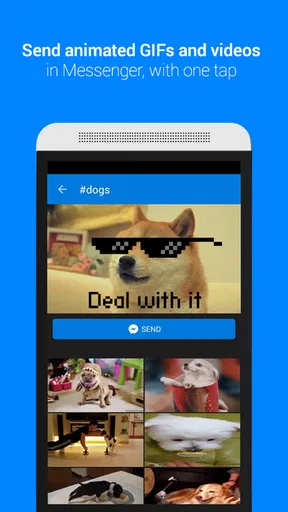
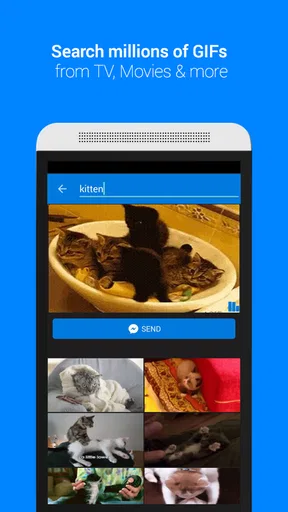
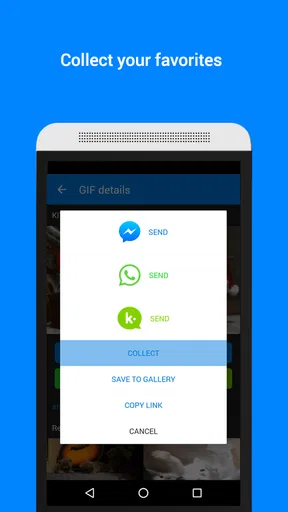
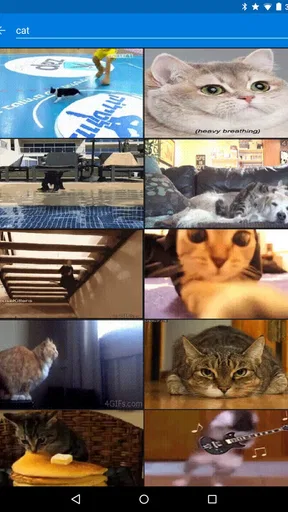
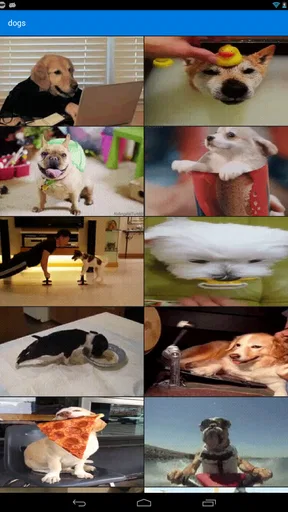
Our Review of GIF Keyboard by Tenor
 Analysis by Appyee
I installed GIF Keyboard by Tenor because I wanted a quicker way to add personality to ordinary messages, and my first impression was that it solves a very specific problem well: finding a reaction image without leaving the conversation for long. It is a free app from Tenor Google in the Video Players & Editors category, although its day-to-day role feels much closer to a messaging companion than a traditional video editor.
The idea is simple. Instead of typing a sentence that may sound flat, I can search for a GIF that carries the mood more naturally. A laugh, an eye roll, a celebration, an awkward pause, or a supportive reaction can all be expressed visually. That makes the app useful when text feels too formal or when a familiar animated reaction says more than a paragraph.
It is also a mature and widely used product. The Android listing shows more than 50 million installs, a 3.7 average from around 256 thousand ratings, and roughly 12 thousand written reviews. Those figures suggest a large audience, but they also tell me not to expect a flawless experience on every phone or in every keyboard setup. The app is popular because the basic idea is convenient, not because every search result will be perfect.
Getting from installation to a useful GIF
Before I decide whether a keyboard belongs in my daily routine, I look beyond the appeal of quick reactions and consider what I can actually check and control. Here, I’d treat the first setup as a chance to review the choices Android presents, then test the keyboard in a low-stakes conversation; that practical check also helps show how much effort it takes to find a GIF that feels right.
What the app is really for
GIF Keyboard by Tenor is best understood as a visual reply tool. Its purpose is not to create animated images from scratch or replace a full video editor. I use it when I already know the feeling I want to communicate and need help finding a short animation that matches it.
That distinction matters. Someone looking for trimming tools, filters, captions, or a timeline should choose a dedicated editor instead. This app is about selection and sharing. Its strength is the short distance between a conversation and a ready-made reaction.
The store summary describes it as a way to add tone to conversation, and that matches my experience more closely than calling it a general media application. A plain “okay” can sound annoyed, while a carefully chosen reaction can make the same response playful. The best results come when the GIF supports the message rather than replacing every message.
The content rating is Teen, so I would still treat the search area as something to use thoughtfully. Search results can vary with broad or ambiguous words, and a GIF that seems funny in one group may be inappropriate in another. I recommend checking the preview before sending, especially in work chats, family conversations, or public replies.
Installing it without overthinking the first screen
The app is free, and the current Android version is 2.1.78. It requires Android 7.0 or later, which covers many older devices but not every phone still in use. Before trying to troubleshoot anything, I would check the Android version and then install the app normally.
After installation, the important step is making sure the keyboard is available where I actually plan to write. A first-time user may open the app, browse a few animations, and assume the job is finished, only to discover that the keyboard does not appear in a favorite messaging app. The practical test is not the app’s opening screen; it is whether the GIF option can be reached while composing a message.
On Android, keyboard availability can depend on the device’s keyboard settings and the messaging app in use. The names of those settings can differ between phone brands, so I would look for the keyboard section in system settings and confirm that Tenor’s keyboard is enabled or selectable if the phone presents that option. I would not switch away from a familiar keyboard permanently until I had tested the workflow and felt comfortable returning to it.
This is one of the first trade-offs. A dedicated GIF keyboard can make visual replies faster, but changing keyboards may feel less natural than using the GIF button already built into another keyboard. If your current keyboard already gives you excellent GIF search and sharing, Tenor may offer less benefit than it does for someone whose existing setup is limited.
The first successful action
For a reassuring first test, I would open a conversation with someone who will not mind receiving a harmless reaction. I would tap the keyboard switch or GIF control, search for a clear emotion such as “excited” or “thank you,” preview a few results, and choose one that fits the context. Then I would send it with a short text message instead of sending the animation alone.
That small workflow demonstrates the app’s main value. The search word describes the feeling, the preview prevents an accidental mismatch, and the accompanying text gives the reaction a clear purpose. I find this more reliable than searching for a very specific celebrity, quote, or scene, because broad emotional terms usually lead to more usable choices.
A useful habit is to search by intent rather than by the exact sentence you want to express. If I want to apologize for replying late, I might try “sorry,” “awkward,” or “my bad” and compare the tone. If I want to congratulate someone, “celebrate” may produce better options than typing the entire sentence. The app works best when I let the visual search suggest possibilities instead of expecting one precise result.
I also recommend sending a test to myself or a trusted contact before using it in an important conversation. This confirms that the animation appears correctly, that the recipient receives something understandable, and that the selected keyboard behaves as expected. It takes very little time and avoids the embarrassment of discovering a problem during a group chat.
Why search quality matters more than the number of GIFs
The central experience is not simply having access to animated images; it is finding the right one quickly. A large collection can still feel frustrating if the first results are repetitive, too dramatic, or emotionally off target. In my use, the strongest searches are short and concrete: a mood, a reaction, or a social situation.
There is a subtle difference between “funny” and “laughing,” for example. One may return general comedy, while the other may focus more directly on a person laughing. I would try two or three nearby terms instead of repeatedly scrolling through an unsuitable result set. This is a better use of the keyboard than treating the first search as final.
For frequent conversations, I would keep a small mental list of searches that work well for me. Words such as “applause,” “confused,” “relieved,” or “good morning” can become shortcuts to a recognizable style of response. The benefit is not just speed; it also helps me avoid sending random animations that do not match my usual tone.
Another practical tip is to preview the entire loop. Some GIFs begin innocently but end with a different expression or punchline. A reaction that looks like agreement in the first moment may turn sarcastic by the end. Previewing is especially important when the message is sensitive, because the animation’s final beat often determines how the recipient reads it.
Common confusion during everyday use
The most likely confusion for a new user is assuming that every GIF behaves like a normal still image. In practice, the way an animation is inserted can depend on the receiving app. Some conversations handle GIF sharing smoothly, while others may show a preview, an inserted animation, or a shared item that the recipient opens separately. If the result looks unusual, I would test the same GIF in another conversation before concluding that the keyboard is broken.
Another point is that the keyboard is not the same thing as a full editing studio. I would not install it expecting to record a video, cut a clip, or design a custom animation. Its role is to help me locate and send existing GIF content. That makes it lightweight in purpose, but also limited for creative users who want to produce their own media.
It is also easy to overuse it. A GIF can soften a short message, but sending one after every sentence can make a conversation feel noisy. I get better results when I use an animation at a moment where tone is genuinely difficult to convey, then return to normal text. The app is most effective as punctuation, not as the entire conversation.
Search terms can create another source of confusion. A word may have several meanings, and the results may reflect slang, pop culture, or a mood different from the one I intended. I would avoid sending the first result automatically. Looking at several options is a small investment that prevents a surprising number of misunderstandings.
Finally, switching between keyboards can slow down typing if I need to change back and forth. For someone who sends GIFs only once a month, opening a separate GIF search tool may be less disruptive than adopting a dedicated keyboard. For someone who uses reactions daily, the keyboard approach is more convenient because it keeps the search close to the text field.
How it compares with the usual alternatives
The most obvious alternative is the GIF search built into a standard keyboard. That option is usually better for people who want to keep their familiar typing layout and occasionally add an animation. It reduces setup friction and avoids changing keyboards during a message.
Tenor’s approach makes more sense when GIFs are a regular part of how you communicate. The dedicated focus puts visual reactions nearer to the center of the experience. I can think in terms of a mood or response and search from there, rather than treating GIFs as a small extra hidden behind several controls.
Messaging apps with their own sticker and GIF panels are another alternative. They may feel more integrated because the content is already inside the conversation, but the experience can vary from one service to another. A keyboard-based tool has the advantage of being available across more than one messaging context, provided the phone and app accept the keyboard normally.
There is also a difference between this app and a video editor. An editor is the better choice when I want to turn my own recording into a reaction, add text to a personal clip, or control timing frame by frame. Tenor is better when speed and ready-made reactions matter more than authorship. Choosing between them depends on whether I want to find content or make content.
Who will enjoy it most
I would recommend it to people who often communicate through group chats, casual messages, online communities, or friendly work conversations where tone matters. It is particularly useful for users who regularly think, “I need a reaction for this,” but do not want to leave the conversation and search manually elsewhere.
It can also help people who find short written replies difficult to interpret. A suitable animation can signal warmth, surprise, amusement, or sympathy more clearly than a bare text response. That does not eliminate ambiguity, but it gives the message another layer of expression.
I would be more cautious about recommending it to someone who rarely sends GIFs, dislikes changing keyboard layouts, or wants complete control over media creation. The app’s value depends on frequency. If I use it once every few weeks, the setup may not repay the effort. If I use visual reactions several times a day, the convenience becomes much easier to appreciate.
People using older Android phones should also be realistic about compatibility. Android 7.0 is the minimum operating system, and even a compatible device may feel different depending on its manufacturer’s keyboard controls. I would treat the first conversation as a practical trial rather than assuming the experience will be identical on every handset.
Small habits that make the tool more effective
My first habit is to pair a GIF with a sentence whenever the context could be misunderstood. “I’m laughing at the situation, not at you” is not always necessary, but a short clarification can prevent a playful reaction from sounding dismissive. The animation adds tone; it should not force the reader to guess the entire meaning.
My second habit is to search in layers. I start with a broad emotional word, then refine it with a situation or intensity. For example, I might move from “happy” to “celebrate” or from “confused” to “what.” This is faster than scrolling endlessly and gives me more control over whether the response feels calm, dramatic, sarcastic, or enthusiastic.
My third habit is to use a preview as an editing step. I watch the loop once, check the facial expression or final movement, and imagine how it looks beside my message. This is especially helpful when the animation contains a joke that may be read differently without the original scene around it.
I also think about the recipient’s connection and device. A large animated reaction can be less welcome in a busy group chat than a short text, and not every person wants a screen full of motion. When the conversation is practical or urgent, I keep the message direct and use a GIF only when it genuinely improves the exchange.
What I would do after the first day
After the initial test, I would decide whether the keyboard deserves a permanent place in my routine. I would use it in two or three different conversations, including one where the tone is casual and another where clarity matters more. That comparison reveals whether the app is helping me communicate or merely encouraging extra scrolling.
If I keep it, I would build a personal search vocabulary instead of trying to memorize individual GIFs. Search terms are more flexible than favorites because the same emotion can require a different style depending on the recipient. A playful group chat, a supportive private message, and a polite colleague conversation may all need different results for the same basic feeling.
I would also keep my normal keyboard workflow available. Tenor is not a replacement for thoughtful writing, and switching back is sensible when I need punctuation, longer text, or a faster response. The best setup is the one that lets me move between words and visual reactions without making either feel like a chore.
My final take for a first-time user
GIF Keyboard by Tenor is a focused, approachable tool for adding emotional context to messages. I like it because the successful use case is easy to understand: open the keyboard, search for a feeling, preview the result, and send it with enough text to make the intention clear.
Its limitations are just as clear. It is not a creative editor, search results still require judgment, and keyboard switching may be unnecessary for people whose current keyboard already handles GIFs well. The 3.7 average rating reflects a generally useful product with enough room for individual frustrations, particularly around compatibility, search expectations, or personal keyboard preferences.
For me, the deciding question is how often I want animated reactions in my conversations. If the answer is often, the free installation and dedicated workflow make it worth trying. If the answer is rarely, I would stay with the GIF controls already built into my messaging or keyboard app. Either way, a first-time user can reach a meaningful result quickly by starting with one simple emotion, checking the full preview, and sending the animation as support for a message rather than a substitute for one.
Verdict
Strengths of GIF Keyboard by Tenor
- Large GIF library with reactions for almost any conversation.
- Quick search helps find relevant GIFs without leaving your chat.
- Easy sharing directly from the keyboard in supported apps.
- Personalized suggestions improve as you use the keyboard.
- Available on both Android and iOS devices.
Limitations of GIF Keyboard by Tenor
- Some GIFs may take time to load on slower connections.
- Search results can occasionally include repetitive or unrelated clips.
- The keyboard may require full access for complete functionality.
- Animated content can consume more mobile data than regular emojis.
- Privacy-conscious users may prefer not to use a third-party keyboard.
Similar Picks in This Category
View All
Google TV
Google LLC3.9

iTunes
Apple4.7

YouTube
Google LLC3.8

MX Player
Amazon Mobile LLC4.2

CapCut - Video Editor
Bytedance Pte. Ltd.3.5

PLAYit-All in One Video Player
PLAYIT TECHNOLOGY PTE. LTD.4.5
Frequently Asked Questions
What is GIF Keyboard by Tenor, and how does it work?
GIF Keyboard by Tenor is a keyboard extension that lets you search for and share animated GIFs, stickers, and short video reactions directly from compatible messaging and social apps. After installation, you enable it in your device’s keyboard settings and access it while typing. You can browse categories, search by words or emotions, copy a GIF, or send it through supported applications.
Is GIF Keyboard by Tenor free to download and use?
Yes, GIF Keyboard by Tenor is generally available as a free download on Android and iOS. Its main GIF-searching and sharing features do not normally require a subscription. However, availability and behavior can vary depending on your region, device, operating-system version, and the messaging app you use. Standard mobile data charges may also apply when browsing or sending media.
Does GIF Keyboard by Tenor work with WhatsApp, Messenger, and other apps?
The keyboard is designed to work with many popular messaging and social applications, including services that support pasted or shared GIF content. Nevertheless, the exact sending method depends on each app and platform. In some conversations, the GIF may be inserted directly; in others, it may appear as a link or require using the share button. Compatibility can change after app updates.
Is GIF Keyboard by Tenor safe and what permissions does it require?
As with any third-party keyboard, you should review permissions carefully before enabling GIF Keyboard by Tenor. Keyboard apps can potentially process text entered through them, so avoid using an unfamiliar keyboard for highly sensitive information unless you understand its privacy practices. Tenor’s service may also require internet access to search and load content. Download it only from an official app store and check the current privacy policy.
Can I use GIF Keyboard by Tenor without an internet connection?
GIF Keyboard by Tenor relies mainly on an internet connection because GIFs and stickers are searched for and loaded from Tenor’s online catalog. Basic keyboard functions may remain available when you are offline, but searching for new reactions, previewing online content, and sharing most GIFs will usually be limited. If you have a restricted data plan, using Wi-Fi for browsing large collections can help reduce mobile-data consumption.
